
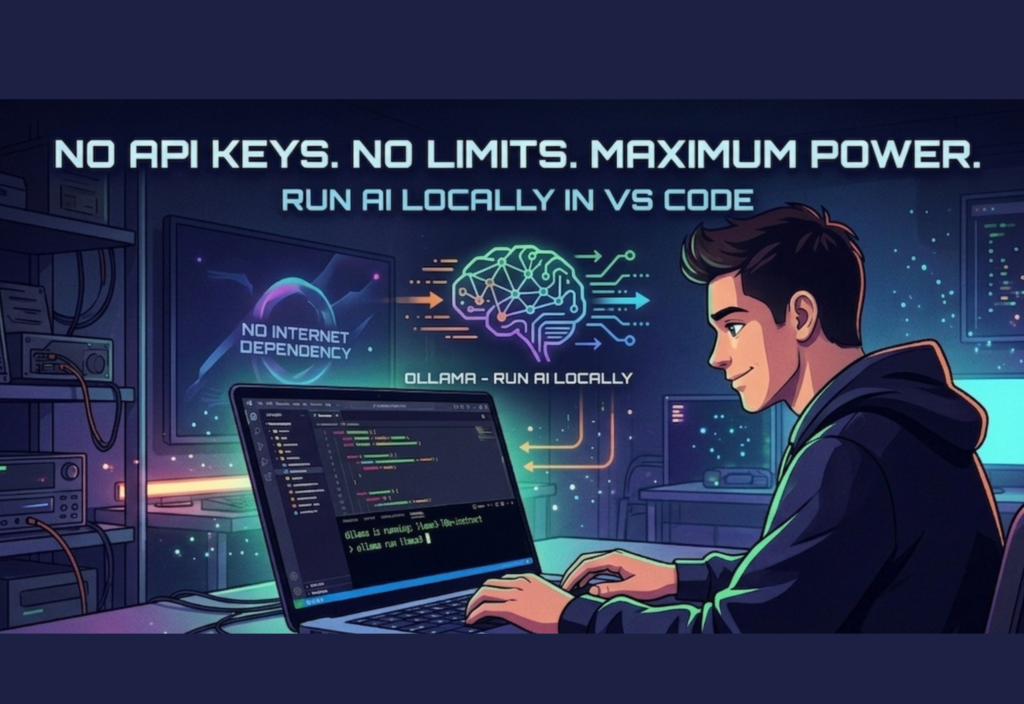
Local AI in VS Code is transforming how developers build and use artificial intelligence tools. Instead of relying on expensive APIs and cloud services, developers can now run powerful AI models directly on their own machines. This approach removes limitations, improves privacy, and gives full control over AI workflows.
Traditionally, using AI meant relying on cloud APIs. These services often come with limitations such as usage costs, rate limits, latency, and privacy concerns. For developers working on sensitive data or large-scale experimentation, these restrictions can become significant barriers.
Now, with tools like Ollama, developers can run AI models locally—without API keys, without restrictions, and with complete control. When paired with Visual Studio Code (VS Code), this setup creates a highly efficient and private AI-powered development environment.
This article explores everything you need to know about running AI locally in VS Code using Ollama, including setup, benefits, use cases, and future potential.
Understanding Ollama: A Game-Changer for Local AI
Ollama is a modern tool designed to simplify the process of running large language models (LLMs) on your local machine. It removes the complexity typically associated with setting up AI environments and provides a clean, developer-friendly interface.
Instead of configuring complex dependencies or managing cloud APIs, Ollama allows you to download and run models with a single command.
What Makes Ollama Powerful?
Ollama stands out because it focuses on simplicity and performance:
- One-command model installation
- Built-in model management
- Optimized for local hardware
- Seamless integration with developer tools
- No internet dependency after setup
It supports popular models such as LLaMA, Mistral, and CodeLlama, enabling a wide range of applications from coding assistance to content generation.
Why Developers Are Moving Toward Local AI
The shift from cloud AI to local AI is not just a trend—it’s a fundamental change in how developers interact with technology.
1. Freedom from API Limitations
Cloud-based AI services impose limits on requests and usage. With local AI, there are no such restrictions. You can run as many queries as you want without worrying about hitting a quota.
2. Cost Efficiency
API usage can become expensive over time, especially for heavy users. Running AI locally eliminates recurring costs, making it ideal for students, freelancers, and startups.
3. Enhanced Privacy and Security
Data privacy is one of the biggest concerns in modern computing. Local AI ensures that:
- Your data stays on your device
- No third-party servers are involved
- Sensitive information remains secure
4. Offline Capability
Once the model is installed, you can use it without an internet connection. This is particularly useful in restricted or low-connectivity environments.
5. Full Customization
Local AI allows developers to experiment freely. You can:
- Modify prompts extensively
- Build custom tools
- Integrate AI into offline applications
The Power of VS Code Integration
Visual Studio Code is one of the most widely used code editors in the world. Its flexibility and rich ecosystem make it an ideal companion for Ollama.
Why VS Code is the Perfect Match
- Integrated terminal for running Ollama commands
- Extensions that enhance AI workflows
- Lightweight and fast performance
- Support for multiple programming languages
- Easy project management
By combining VS Code with Ollama, developers can code, test, and interact with AI—all in one place.
Complete Setup Guide: Run AI Locally with Ollama in VS Code
Setting up local AI might sound complex, but with Ollama, the process is straightforward.
Step 1: Install Ollama
Download Ollama from its official source and install it according to your operating system.
After installation, verify it using:
ollama –version
This ensures that the tool is correctly installed.
Step 2: Install an AI Model
Ollama allows you to run models instantly. For example:
ollama run llama2
This command downloads and runs the LLaMA 2 model automatically.
You can also try other models:
- mistral
- codellama
- phi
Each model serves different purposes, such as coding, chat, or lightweight tasks.
Step 3: Set Up VS Code
Install Visual Studio Code if you haven’t already. Once installed:
- Open your project folder
- Launch the integrated terminal
- Run Ollama commands directly
Step 4: Start Using AI in VS Code
Inside the VS Code terminal, run:
ollama run llama2
You can now interact with the AI model in real time. This allows you to:
- Ask coding questions
- Generate scripts
- Debug errors
- Write documentation
Step 5: Improve Productivity with Extensions
VS Code extensions can enhance your AI workflow. Some extensions provide:
- Chat interfaces
- Code suggestions
- Prompt templates
These tools make the development process faster and more intuitive.
Real-World Applications of Local AI
Running AI locally opens up a wide range of practical use cases.
1. AI-Powered Coding Assistant
Developers can use local AI to:
- Generate code snippets
- Fix bugs
- Optimize performance
2. Content Creation
Writers and marketers can:
- Generate blog posts
- Create SEO content
- Draft emails and scripts
3. Education and Learning
Students can learn AI concepts and experiment without worrying about API costs.
4. Offline Software Development
Build applications that include AI features without requiring internet access.
5. Personal AI Tools
Create your own chatbot or assistant tailored to your needs.
Performance and Hardware Considerations
Local AI performance depends on your system’s capabilities.
Minimum Requirements
- 8GB RAM
- Modern CPU
Recommended Setup
- 16GB or more RAM
- SSD storage
- GPU for faster inference
While high-end hardware improves speed, many models are optimized to run efficiently even on modest systems.
Challenges of Running AI Locally
Despite its advantages, local AI comes with some challenges:
- Large models require significant storage
- Initial downloads can take time
- Performance may vary based on hardware
However, ongoing improvements in model optimization are rapidly reducing these limitations.
The Future of Local AI
The future of AI is increasingly moving toward decentralization. Developers are gaining more control over their tools, and local AI is becoming more accessible than ever.
We are entering a phase where:
- AI runs directly on personal devices
- Privacy becomes a standard feature
- Developers are no longer dependent on centralized services
Ollama represents a significant step in this direction.
Conclusion
Running AI locally in VS Code with Ollama is a powerful and practical solution for modern developers. It removes the need for API keys, eliminates usage limits, and provides complete control over data and workflows.
Whether you are a beginner exploring AI or an experienced developer building advanced applications, this setup offers unmatched flexibility and efficiency.
By adopting local AI tools like Ollama, you are not just improving your workflow—you are stepping into the future of independent, privacy-first development.