
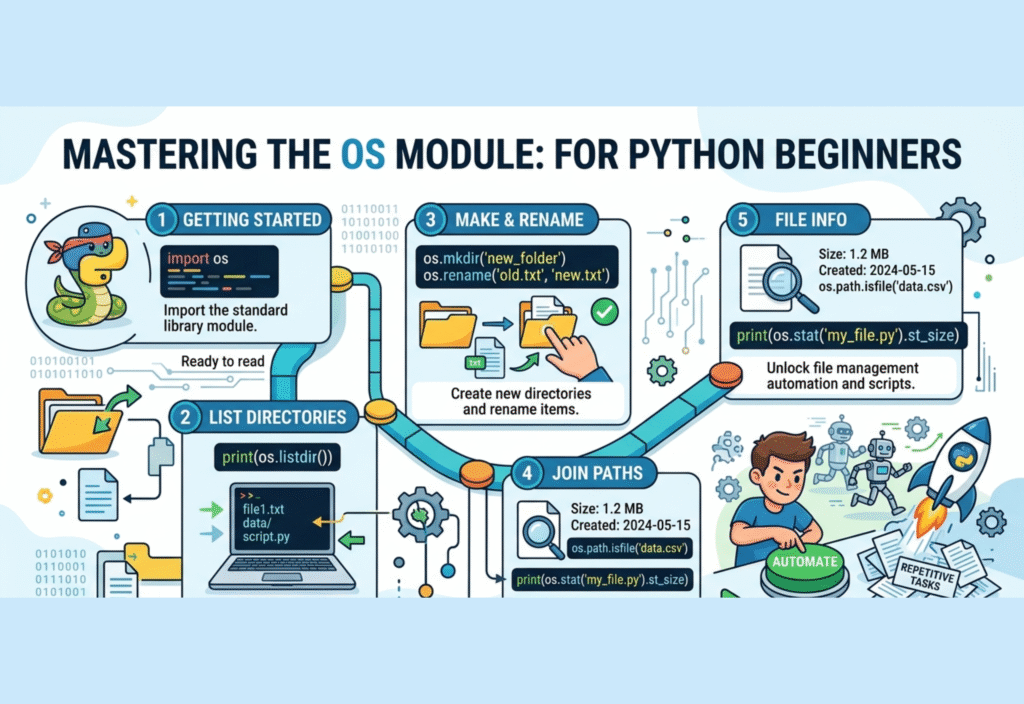
Python OS module automation is an important concept for beginners who want to automate file handling and system-level tasks in Python. This guide explains how the OS module works and how you can use it to manage files, directories, and system operations step by step.
At first glance, the os module may not seem exciting. But once you start building real-world projects—like automating file organization, managing directories, or interacting with the operating system—you quickly realize how important it is. In fact, many automation scripts rely heavily on the os module to perform everyday tasks efficiently.
In this step-by-step guide, you’ll learn what the os module is, why it matters, and how to use it with practical examples.
What is the Python OS Module?
The os module in Python provides a way to interact with the operating system. It allows you to perform tasks such as:
- Working with files and directories
- Navigating the file system
- Creating and deleting folders
- Renaming files
- Accessing environment variables
- Running system commands
Since it is part of Python’s standard library, you don’t need to install anything extra.
Why Beginners Ignore the OS Module
Many beginners skip the os module because:
- It seems low-level compared to modern libraries
- Tutorials often focus on frameworks instead
- It doesn’t produce flashy outputs like web apps or visualizations
- Its usefulness becomes clear only in real-world projects
However, once you start automation tasks, the os module becomes indispensable.
Getting Started with the OS Module
To use the os module, you first need to import it:
import os
Once imported, you can start accessing its functions.
1. Getting the Current Working Directory
One of the most common tasks is checking your current working directory.
import os
cwd = os.getcwd()
print(“Current Working Directory:”, cwd)
This helps you understand where your script is running.
2. Changing the Working Directory
You can change the current directory using:
import os
os.chdir(“C:/Users/YourFolder”)
print(“Directory changed successfully”)
This is useful when working with files located in different directories.
3. Listing Files and Folders
To see all files and directories in a folder:
import os
files = os.listdir()
print(files)
You can also specify a path:
os.listdir(“C:/Users/YourFolder”)
4. Creating a New Directory
Creating folders programmatically is simple:
import os
os.mkdir(“new_folder”)
print(“Folder created”)
To create nested directories:
os.makedirs(“parent_folder/child_folder”)
5. Removing Files and Directories
You can delete files using:
import os
os.remove(“file.txt”)
To remove an empty directory:
os.rmdir(“new_folder”)
For nested directories:
os.removedirs(“parent_folder/child_folder”)
6. Renaming Files
Renaming files is straightforward:
import os
os.rename(“old_name.txt”, “new_name.txt”)
7. Checking if a File or Directory Exists
Before performing operations, it’s good practice to check existence:
import os
if os.path.exists(“file.txt”):
print(“File exists”)
else:
print(“File not found”)
8. Working with Paths
The os.path submodule helps handle file paths safely.
Example:
import os
path = os.path.join(“folder”, “file.txt”)
print(path)
This ensures compatibility across different operating systems.
9. Getting File Information
You can retrieve file details:
import os
size = os.path.getsize(“file.txt”)
print(“File size:”, size, “bytes”)
10. Running System Commands
The os.system() function allows you to execute system commands:
import os
os.system(“echo Hello World”)
Use this carefully, as it interacts directly with the system shell.
Real-World Automation Example
Let’s combine multiple os functions to organize files automatically.
import os
folder = “downloads”
if not os.path.exists(folder):
os.mkdir(folder)
for file in os.listdir():
if file.endswith(“.txt”):
os.rename(file, os.path.join(folder, file))
print(“Files organized successfully”)
This script moves all .txt files into a folder named “downloads”.
Best Practices When Using the OS Module
- Always check if files or directories exist before modifying them
- Use
os.path.join()instead of manual path concatenation - Avoid hardcoding file paths when possible
- Be cautious with delete operations
- Test scripts in a safe environment before running them on important data
Common Mistakes Beginners Make
- Using incorrect file paths
- Forgetting to check file existence
- Accidentally deleting important files
- Not handling exceptions
- Ignoring cross-platform compatibility
Conclusion
The os module may seem simple at first, but it becomes extremely powerful when you start building automation scripts and real-world applications. From managing files to interacting with the operating system, it plays a critical role in Python programming.
If you’re a beginner, learning the os module early will significantly improve your ability to write practical and efficient scripts. Instead of relying only on high-level libraries, understanding system-level operations will give you more control and flexibility in your projects.
Once you start using the os module in automation tasks, you’ll realize why it’s one of the most important yet underrated tools in Python.