
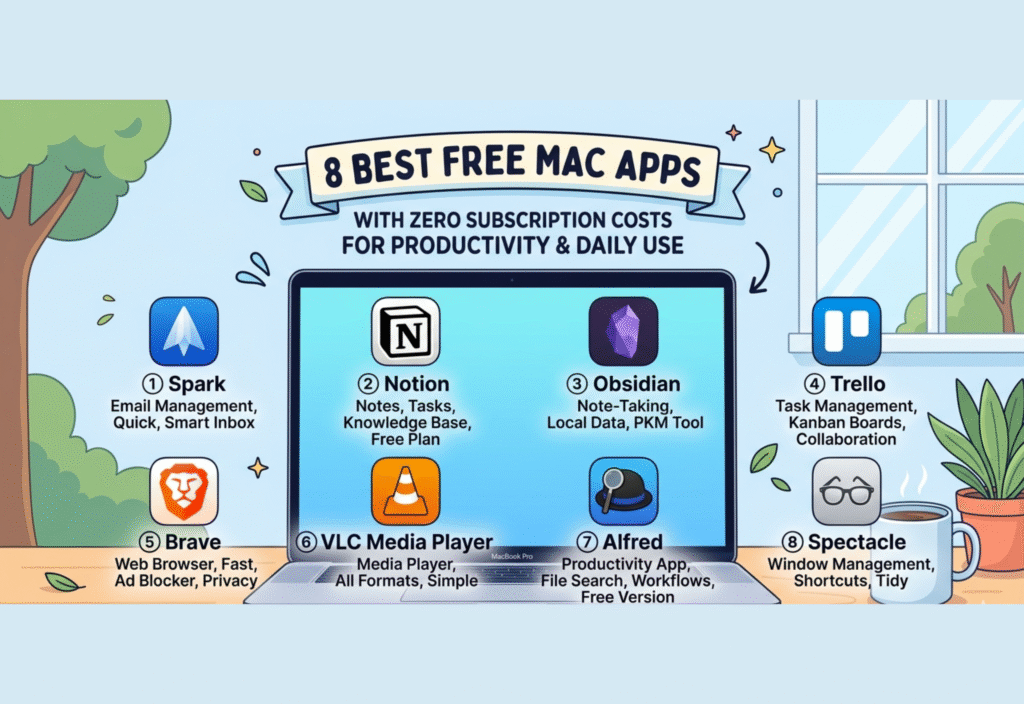
Mac users often look for reliable and efficient applications to manage daily tasks, improve productivity, and streamline workflows. However, many popular apps today come with subscription models that require monthly or yearly payments.
The good news is that there are still several high-quality Mac applications available that are completely free and do not require any subscription. These tools can help you write, design, manage projects, edit media, and much more—without adding extra financial burden.
In this article, we will explore 8 of the best free Mac apps with zero subscription costs, focusing on how they can improve productivity and support everyday use.
Why Choose Free Mac Apps?
Before exploring the apps, it’s important to understand why free tools are valuable:
1. Cost Efficiency
Free apps eliminate the need for recurring payments, making them ideal for students, freelancers, and startups.
2. Flexibility
You can try multiple apps without committing financially, allowing you to find what works best.
3. Accessibility
Free apps make advanced tools accessible to everyone, regardless of budget.
4. Open Source Benefits
Many free apps are open-source, meaning:
-
They are transparent
-
They are community-driven
-
They often receive regular updates
1. Notion – Ultimate Productivity Workspace
Notion is one of the most powerful productivity apps available for Mac users.
Key Features:
-
Note-taking and documentation
-
Task and project management
-
Databases and knowledge management
-
Customizable templates
Use Cases:
-
Managing personal tasks
-
Organizing study notes
-
Team collaboration
-
Planning projects
Why It Stands Out:
Notion combines multiple tools into one platform, reducing the need for multiple apps.
2. Obsidian – Personal Knowledge System
Obsidian is a free app designed for creating a network of interconnected notes.
Key Features:
-
Markdown-based writing
-
Local storage (privacy-focused)
-
Graph view of connected notes
-
Highly customizable
Use Cases:
-
Research and academic work
-
Personal knowledge base
-
Writing and journaling
Why It Stands Out:
It helps users build a “second brain” by connecting ideas and concepts.
3. LibreOffice – Complete Office Suite
LibreOffice is a powerful alternative to paid office software.
Key Features:
-
Word processing
-
Spreadsheets
-
Presentations
-
File compatibility with Microsoft Office
Use Cases:
-
Writing documents
-
Creating reports
-
Managing data and spreadsheets
Why It Stands Out:
It offers a complete office suite without any subscription or licensing cost.
4. VLC Media Player – Universal Media Playback
VLC Media Player is a widely used media player known for its versatility.
Key Features:
-
Supports almost all audio and video formats
-
No ads or hidden costs
-
Lightweight and fast
-
Advanced playback controls
Use Cases:
-
Watching videos
-
Listening to audio files
-
Streaming media
Why It Stands Out:
It eliminates the need for multiple media players.
5. GIMP – Powerful Image Editing Tool
GIMP is a free and open-source alternative to advanced image editing software.
Key Features:
-
Layer-based editing
-
Advanced image manipulation
-
Plugin support
-
Open-source flexibility
Use Cases:
-
Photo editing
-
Graphic design
-
Digital art
Why It Stands Out:
It provides professional-level editing tools without requiring expensive subscriptions.
6. Audacity – Audio Recording & Editing
Audacity is a free tool for recording and editing audio.
Key Features:
-
Multi-track audio editing
-
Sound recording
-
Effects and filters
-
Open-source
Use Cases:
-
Podcast creation
-
Music editing
-
Voice recording
Why It Stands Out:
It is one of the most trusted tools for audio editing worldwide.
7. Trello – Visual Task Management
Trello helps users manage tasks through boards and cards.
Key Features:
-
Drag-and-drop interface
-
Task tracking
-
Collaboration tools
-
Visual organization
Use Cases:
-
Project management
-
Team collaboration
-
Personal task tracking
Why It Stands Out:
It makes task management simple and visually intuitive.
8. Blender – Advanced 3D Creation Suite
Blender is a powerful tool for 3D modeling and animation.
Key Features:
-
3D modeling and sculpting
-
Animation tools
-
Rendering engine
-
Video editing
Use Cases:
-
Game development
-
Animation
-
Visual effects
Why It Stands Out:
It provides professional-grade 3D tools completely free.
How These Apps Improve Daily Productivity
Using the right combination of these apps can significantly improve productivity:
-
Organization: Notion and Trello help manage tasks
-
Knowledge Management: Obsidian builds structured thinking
-
Office Work: LibreOffice handles documents and spreadsheets
-
Media Handling: VLC simplifies playback
-
Creative Work: GIMP, Audacity, and Blender enable design and editing
Together, these tools form a complete productivity ecosystem without any cost.
Best Practices When Using Free Apps
To get the most out of these tools:
-
Regularly update your apps
-
Explore tutorials to learn advanced features
-
Customize settings for better workflow
-
Combine multiple apps for better productivity
Conclusion
Free Mac apps have become powerful enough to compete with paid alternatives. The apps listed in this article provide everything from task management and note-taking to media editing and 3D design—all without any subscription fees.
By using these tools, you can build a highly efficient digital workflow without spending money. Whether you are a student, professional, or creative user, these apps can help you stay productive and organized in your daily life.