
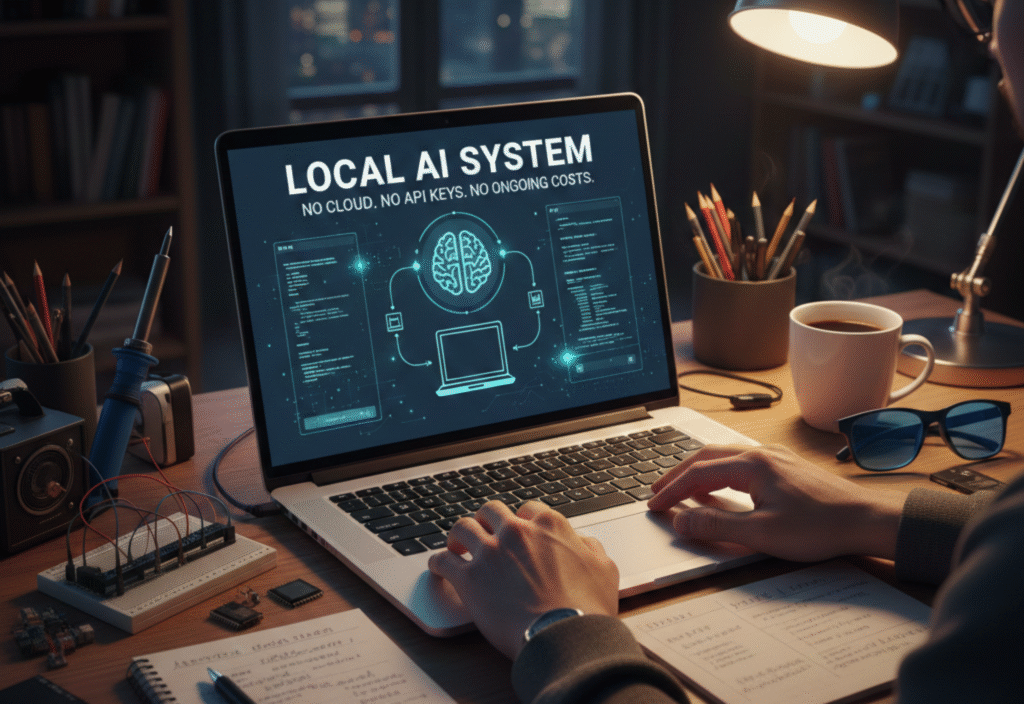
Building a local AI system on your laptop is now possible, giving you full control over text, image, and speech AI without relying on cloud services or API keys. AI is everywhere, but running it locally ensures privacy, security, and zero ongoing costs.
I decided to take a different path: building a fully functional AI system entirely on my personal laptop, without paying for cloud services, without API keys, and without ongoing costs. This journey taught me a lot about local computing, open-source AI, and the trade-offs between power, speed, and efficiency. In this article, I will walk you through how I achieved this, the challenges I faced, and how you can do it too.
Why a Local AI System?
Before we dive into the technical details, it’s important to understand why building AI locally is beneficial.
Data Privacy and Security
When AI runs locally, your data never leaves your computer. There’s no risk of sensitive information being stored on third-party servers. This is critical if you are working with personal data, confidential documents, or proprietary datasets.Cost Efficiency
Cloud AI services often charge per request, per model usage, or per month. By running models locally, you pay once (if at all) for hardware and software, and then the system is free to use indefinitely.Customization and Control
Local AI gives you complete freedom to tweak, fine-tune, or modify models. You can experiment with custom datasets, try different architectures, or even merge models, all without cloud restrictions.Offline Capability
Not every environment has reliable internet. Local AI allows you to work anywhere, anytime, which is especially useful for research, travel, or situations where cloud services are unavailable.Learning and Skill Development
Running AI locally forces you to understand how models, frameworks, and hardware interact, providing deeper knowledge than simply using APIs.
Step 1: Understanding Hardware Requirements
Building AI on your laptop is possible, but performance depends heavily on your hardware. Here’s what I recommend:
CPU: Multi-core processors (Intel i7 or AMD Ryzen 7+) help with faster computation.
RAM: At least 16 GB; 32 GB is ideal for larger models.
GPU: NVIDIA GPUs with CUDA support make large models feasible. Even mid-range GPUs like RTX 3060 or 3070 are sufficient.
Storage: SSDs are recommended since AI models can be several gigabytes in size.
Note: If you don’t have a GPU, don’t worry. Smaller models can run on CPU-only setups, though performance will be slower.
Step 2: Setting Up the Development Environment
A clean environment ensures that packages don’t conflict, and that your setup is reproducible. Here’s how I set it up:
Install Python
Python 3.11 or later is ideal. It’s compatible with the latest AI frameworks.Create a Virtual Environment
python -m venv local_ai_env
source local_ai_env/bin/activate  # Linux/Mac
local_ai_env\Scripts\activate     # Windows
Install Essential Libraries
pip install torch torchvision torchaudio --index-url https://download.pytorch.org/whl/cu118
pip install transformers sentencepiece diffusers gradio matplotlib numpy pandasPyTorch: For running neural networks.
Transformers: For text and NLP models.
Diffusers: For image generation models like Stable Diffusion.
Gradio: To build local interfaces for AI apps.
Matplotlib, NumPy, Pandas: For data processing and visualization.
Step 3: Choosing the Right AI Models
AI models vary in size, capability, and hardware requirements. To run AI locally, I focused on open-source models optimized for efficiency.
Text Generation:
GPT-Neo(125M–1.3B parameters)GPT-J(6B parameters, laptop-friendly versions available)MPT(MosaicML models)
Image Generation:
Stable Diffusion(1.4 or 1.5, lightweight variants)Latent Diffusion Models
Speech-to-Text:
Whisperby OpenAI (can run fully offline)
The key is smaller, optimized models for laptop usage. Large models like GPT-4 require massive GPU memory and aren’t feasible for local setups yet.
Step 4: Downloading Models Locally
Instead of using APIs, all models are downloaded and cached locally. Hugging Face Hub makes this easy:
from transformers import AutoTokenizer, AutoModelForCausalLM
model_name = “EleutherAI/gpt-neo-1.3B”
tokenizer = AutoTokenizer.from_pretrained(model_name)
model = AutoModelForCausalLM.from_pretrained(model_name)
After the first download, the model runs entirely offline, without internet access.
Step 5: Running AI Inference Offline
Running inference on local models is straightforward:
import torch
prompt = “Explain how AI can run locally without cloud services.”
inputs = tokenizer(prompt, return_tensors=“pt”)
outputs = model.generate(**inputs, max_length=150)
print(tokenizer.decode(outputs[0]))
Output is generated entirely on your laptop.
You can adjust parameters like
max_length,temperature, andtop_pfor creativity control.
Even with a smaller GPU, this can produce high-quality text or code suggestions.
Step 6: Optimizing Performance
Some models are too large for laptops. I optimized performance using these methods:
Use Smaller Models
GPT-Neo 125Mor350Mis lighter and faster than 1.3B.
Mixed Precision / Half-Precision
model.half() # Use float16 for reduced GPU memoryBatch Processing
Process multiple inputs together to improve efficiency.Disk-Based Offloading
For huge models, frameworks like Accelerate can offload parts of the model to disk instead of RAM.
Step 7: Building a Local AI App
To make the AI user-friendly, I created a simple graphical interface using Gradio:
import gradio as gr
def generate_text(prompt):
inputs = tokenizer(prompt, return_tensors=“pt”)
outputs = model.generate(**inputs, max_length=150)
return tokenizer.decode(outputs[0])
iface = gr.Interface(fn=generate_text, inputs=“text”, outputs=“text”)
iface.launch()
Now, I can run the AI like a web app without any internet connection. This allows anyone in the room to use it via a browser.
Step 8: Expanding Beyond Text
The same approach works for images and audio:
Image Generation with Stable Diffusion:
from diffusers import StableDiffusionPipelinepipe = StableDiffusionPipeline.from_pretrained(“runwayml/stable-diffusion-v1-5”)
pipe.to(“cuda”) # Use GPU if availableimage = pipe(“A futuristic city skyline at sunset”).images[0]
image.save(“futuristic_city.png”)Speech-to-Text with Whisper:
import whispermodel = whisper.load_model(“base”)
result = model.transcribe(“speech_sample.mp3”)
print(result[“text”])
All of this is offline and free, once the models are downloaded.
Challenges I Faced
Building local AI isn’t without challenges:
Hardware Limits – Large models can exceed memory.
Dependency Management – Installing correct versions of PyTorch, CUDA, and other libraries required patience.
Manual Updates – Unlike cloud APIs, models don’t auto-update. But this gives stability and control.
Initial Learning Curve – Understanding tokenization, model sizes, and inference pipelines took time.
Despite these hurdles, the benefits far outweighed the challenges.
Advantages of Local AI
Zero Ongoing Costs – Only pay for hardware, no subscriptions.
Privacy – Data never leaves your laptop.
Freedom to Customize – Fine-tune models, combine them, or experiment with new workflows.
Offline Accessibility – Work anywhere without internet.
Learning Opportunity – Gain hands-on experience with AI frameworks, models, and computing principles.
Final Thoughts
Building a local AI system is achievable, practical, and rewarding. With modern laptops and open-source models, anyone can have AI capabilities without relying on cloud providers.

wish you all the best
wish you best and best