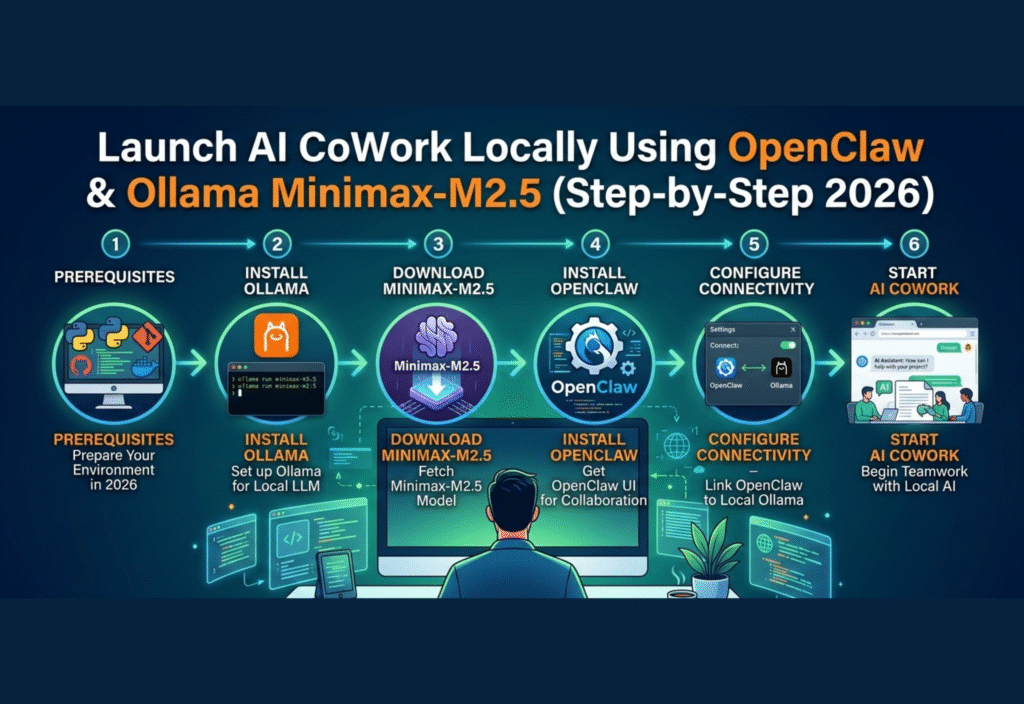
Launch AI CoWork locally using OpenClaw and Ollama Minimax-M2.5 has become the most efficient way to build a secure and private AI workspace in 2026. This step-by-step guide will show you how to launch AI CoWork locally, optimize performance, and manage your AI models without relying on cloud services.Artificial Intelligence (AI) has become an integral part of modern workplaces, enabling automation, advanced analytics, and collaboration at an unprecedented scale. In 2026, tools like OpenClaw and Ollama Minimax-M2.5 provide an efficient solution to run AI locally, giving users complete control over their data, performance, and workflows. Running AI locally is particularly important for organizations concerned about privacy, latency, and cost. This comprehensive guide will walk you through the entire process of launching a local AI CoWork environment.
Why Choose Local AI CoWork?
Before diving into the technical setup, it’s important to understand why local AI deployment is preferable in many cases:
Data Privacy and Security:
Cloud-based AI solutions store data on third-party servers, which may lead to potential breaches or misuse. By running AI locally, sensitive information remains on your machine.Reduced Latency:
Cloud AI requires internet connectivity, and even small delays can disrupt real-time workflows. Local AI ensures instant processing and faster results.Cost Efficiency:
Cloud services often charge based on processing time or data usage. Local AI eliminates recurring subscription costs and reduces dependency on internet bandwidth.Full Customization:
Local AI allows tailoring of models and workflows according to your exact business needs, including industry-specific tasks or proprietary datasets.Offline Availability:
Local AI works even without internet access, ensuring uninterrupted productivity.
By integrating OpenClaw for orchestration and Ollama Minimax-M2.5 for high-performance AI tasks, you can create a robust, scalable, and secure local AI workspace.
Step 1: Preparing Your System
A successful AI CoWork setup requires a system capable of handling intensive computations. Here’s what you need:
Operating System:
Windows 11, macOS Ventura, or Linux Ubuntu 24.04Processor (CPU):
Multi-core processor; Intel i7 or AMD Ryzen 7 recommendedGraphics Processing Unit (GPU):
NVIDIA RTX 30-series or higher for accelerated AI processingMemory (RAM):
Minimum 16 GB (32 GB recommended for complex workflows)Storage:
At least 500 GB SSD for models, datasets, and logsInternet Connection:
Required only for initial downloads and updates
Tip: For heavy AI tasks, a dedicated GPU is essential. While CPUs can handle AI, GPUs provide significantly faster computation, especially for natural language processing and data analysis.
Step 2: Installing OpenClaw
OpenClaw is an orchestration platform designed to manage multiple AI models and streamline workflows. Here’s how to set it up:
Download OpenClaw:
Visit the official OpenClaw website and download the 2026 stable release for your operating system.Install OpenClaw:
Run the installer and follow the on-screen instructions. Choose the default installation directory unless you prefer a custom location.Verify Installation:
Open the terminal or command prompt and run:openclaw –versionYou should see a version number indicating successful installation.
Initial Setup:
OpenClaw comes with a default dashboard. Launch it using:openclaw dashboardThis dashboard provides real-time monitoring of AI tasks, resource allocation, and model performance.
Step 3: Installing Ollama Minimax-M2.5
Ollama Minimax-M2.5 is a powerful AI model capable of handling:
Natural Language Processing (NLP)
Code generation and debugging
Data analytics and predictive modeling
Automated content creation
Installation Steps:
Download the Model:
Obtain Minimax-M2.5 from the official Ollama repository.Extract the Package:
Extract the downloaded files to a dedicated folder, for example:C:\AI\Ollama\Minimax-M2.5Initialize the Model:
Open a terminal and run:ollama init –model Minimax-M2.5 –path C:\AI\Ollama\Minimax-M2.5Test the Model:
Ensure it’s functioning correctly:ollama test –model Minimax-M2.5If successful, you will see a confirmation that the model is ready.
Step 4: Integrating OpenClaw with Minimax-M2.5
Integration allows OpenClaw to orchestrate AI tasks using Minimax-M2.5. Follow these steps:
Open the OpenClaw configuration file, usually
config.yaml.Add the following section under the
modelskey:Minimax-M2.5:
path: “C:/AI/Ollama/Minimax-M2.5”
type: “local”
resources:
cpu: 80%
gpu: 90%Save the configuration and restart OpenClaw:
openclaw restart
This ensures that all AI tasks routed through OpenClaw will use Minimax-M2.5 locally.
Step 5: Running AI Tasks Locally
Once the integration is complete, you can start running AI tasks. Some practical examples include:
Document Summarization:
Automatically summarize long reports, articles, or emails.openclaw run –task “Summarize Annual Report” –model Minimax-M2.5Content Generation:
Generate blog posts, marketing copies, or social media posts.Predictive Analytics:
Analyze historical data to forecast sales, customer behavior, or trends.Code Assistance:
Help developers write, debug, or optimize code efficiently.
Each task can be customized with parameters such as output length, tone, or complexity.
Step 6: Optimizing Performance
To ensure smooth operation and maximum efficiency:
Resource Allocation:
Adjust CPU and GPU usage inconfig.yamlto prevent system overload.Batch Processing:
For large datasets, process tasks in batches to maintain stability.Update Models:
Regularly check for updates for Minimax-M2.5 to improve accuracy and efficiency.Monitor Logs:
OpenClaw provides detailed logs for each task. Monitor them to troubleshoot errors or optimize workflows.
Step 7: Security and Privacy
Local AI setups are inherently more secure, but additional precautions are recommended:
Use firewall rules to restrict access to the AI workspace.
Store sensitive datasets in encrypted directories.
Backup AI configurations and datasets regularly.
Limit access to authorized personnel only.
By following these steps, your AI CoWork environment remains private, secure, and fully under your control.
Step 8: Scaling Your Local AI Workspace
As your AI tasks grow, you can scale your local setup by:
Adding More GPUs:
Enhance processing power for large-scale tasks.Connecting Multiple Machines:
Use OpenClaw’s distributed orchestration to share tasks across devices.Automating Workflows:
Set up scheduled tasks to automatically process new data using Minimax-M2.5.
Scaling locally ensures that performance keeps up with business growth without relying on costly cloud subscriptions.
Benefits Summary
By combining OpenClaw and Ollama Minimax-M2.5 for local AI CoWork, you gain:
High-Speed Processing: Local computation reduces task completion times.
Cost Efficiency: No recurring cloud subscription fees.
Complete Data Privacy: Sensitive data never leaves your system.
Customizable AI Workflows: Tailor AI to your exact needs.
Offline Functionality: Continue working even without internet connectivity.
Conclusion
Launching a local AI workspace with OpenClaw and Ollama Minimax-M2.5 is the ideal solution for organizations and individuals prioritizing privacy, speed, and control. This setup allows secure, fast, and cost-effective AI collaboration, empowering teams to harness the full potential of AI in 2026. By following this step-by-step guide, anyone can build a reliable AI CoWork environment locally, ensuring both productivity and data security.