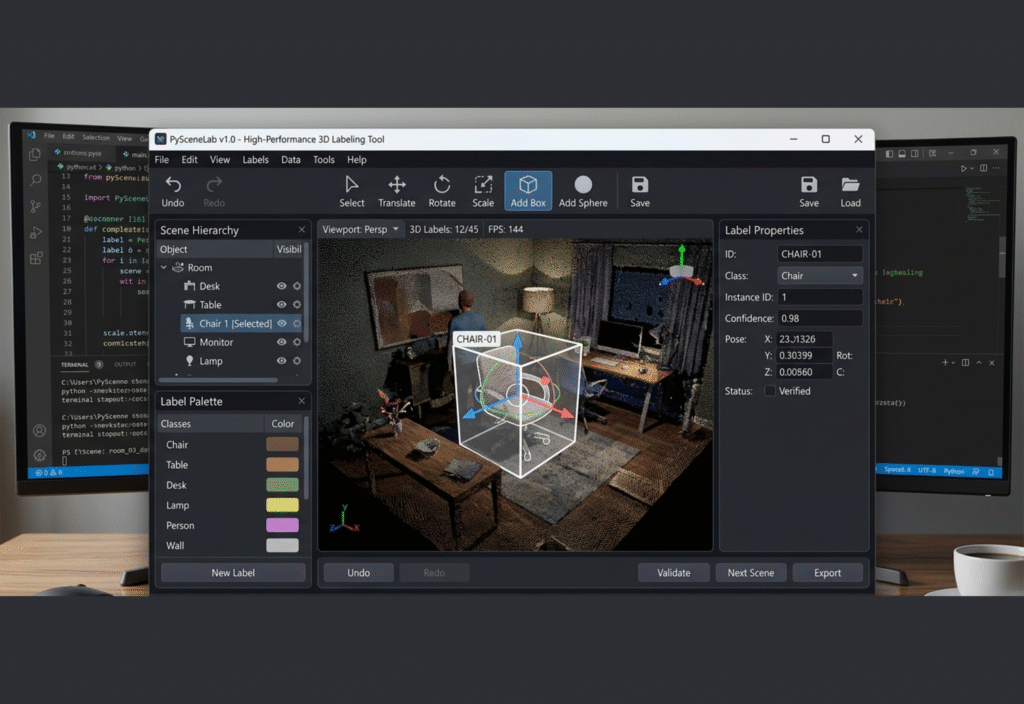
Developing a Python 3D Scene Labeling GUI allows engineers and researchers to interactively annotate point clouds and 3D scenes efficiently. This high-performance tool ensures accurate labeling for AI, robotics, and computer vision applications.
Why a Custom Python GUI for 3D Scene Labeling?
Existing tools may not meet all project requirements, such as:
- Handling large point clouds efficiently.
- Customizing labeling workflows.
- Integrating advanced visualization techniques.
- Supporting interactive user feedback.
Building a GUI from scratch in Python allows you to:
- Tailor the interface to your workflow.
- Optimize performance for large datasets.
- Integrate AI-based assistance for automatic labeling.
- Maintain full control over future feature additions.
Key Components of a 3D Scene Labeling GUI
A high-performance GUI for 3D scene labeling typically includes the following:
- 3D Visualization Module: Displays point clouds, meshes, or voxel grids interactively.
- Annotation Tools: Supports bounding boxes, segmentation masks, and semantic labeling.
- Data Management: Loads, saves, and organizes large datasets efficiently.
- User Interface Elements: Buttons, menus, and panels for intuitive workflow.
- Performance Optimizations: Ensures smooth rendering and responsiveness, even with millions of points.
Choosing the Right Python Libraries
Several Python libraries can help in building a 3D labeling GUI:
1. PyQt5 / PySide6
- Provides the framework for GUI elements.
- Enables complex layouts, custom widgets, and events handling.
- Example usage:
from PyQt5.QtWidgets import QApplication, QMainWindow
app = QApplication([])
window = QMainWindow()
window.setWindowTitle(“3D Labeling GUI”)
window.show()
app.exec_()
2. Open3D
- Efficient 3D visualization and point cloud processing library.
- Supports interactive visualization, camera control, and annotation.
import open3d as o3d
pcd = o3d.io.read_point_cloud(“scene.pcd”)
o3d.visualization.draw_geometries([pcd])
3. PyOpenGL or VTK
- For advanced rendering and custom shaders.
- Useful when high frame rate and complex scenes are needed.
4. NumPy / Pandas
- Efficiently handle large 3D datasets.
- Support data filtering, transformation, and storage.
Designing the GUI Layout
A clean and functional layout improves labeling efficiency. Suggested layout:
- 3D View Panel: The central viewport displaying the scene.
- Control Panel: Options for loading datasets, selecting annotation types, and saving labels.
- Label List Panel: Shows existing labels and allows edits.
- Status Bar: Displays active tool, current selection, or performance metrics.
Implementing 3D Visualization
Using Open3D with PyQt Integration
You can embed Open3D visualization in a PyQt GUI:
from PyQt5.QtWidgets import QApplication, QMainWindow, QVBoxLayout, QWidget
import open3d as o3d
import open3d.visualization.gui as gui
import open3d.visualization.rendering as rendering
class MainWindow(QMainWindow):
def __init__(self):
super().__init__()
self.setWindowTitle(“3D Scene Labeling”)
self.widget = QWidget()
self.setCentralWidget(self.widget)
layout = QVBoxLayout()
self.widget.setLayout(layout)
self.scene_widget = gui.SceneWidget()
layout.addWidget(self.scene_widget)
pcd = o3d.io.read_point_cloud(“scene.pcd”)
self.scene_widget.scene.add_geometry(“scene”, pcd, rendering.MaterialRecord())
app = QApplication([])
window = MainWindow()
window.show()
app.exec_()
This setup creates an interactive 3D viewport inside a PyQt window.
Building Annotation Tools
1. Bounding Boxes
- Let users define boxes around objects.
- Use mouse events to place vertices and create 3D boxes.
- Store bounding box coordinates in JSON or CSV.
2. Semantic Labels
- Allow users to assign labels like
Car,Pedestrian, orTree. - Color-code objects for easier visualization.
3. Automatic Suggestions
- Integrate a pre-trained model to suggest labels.
- Users can correct or accept predictions to speed up labeling.
Data Management Strategies
Handling large 3D datasets efficiently:
- Streaming Data: Load only visible parts of the scene.
- Binary Formats: Use
.plyor.pcdfor faster read/write operations. - Incremental Saves: Save labels in real-time to avoid data loss.
- Versioning: Maintain versions to track labeling progress.
Performance Optimization Tips
- Use spatial indexing (KD-trees, octrees) for fast point cloud queries.
- Reduce point cloud density for initial visualization.
- Employ GPU rendering if supported by your library.
- Optimize GUI redraws: only update elements that changed.
Enhancing Usability
- Shortcut Keys: Speed up common actions like labeling, deleting, or undoing.
- Custom Themes: Dark mode for longer labeling sessions.
- Statistics Panel: Show counts of labeled objects and annotation progress.
- Undo/Redo Functionality: Avoid losing edits accidentally.
Saving and Exporting Labels
- Save in standard formats: JSON, CSV, or KITTI format for interoperability.
- Include metadata such as:
- Object ID
- Label type
- Position coordinates
- Timestamp
- Example JSON export:
{
“id”: 1,
“label”: “Car”,
“bbox”: [x_min, y_min, z_min, x_max, y_max, z_max]
},
{
“id”: 2,
“label”: “Pedestrian”,
“bbox”: [x_min, y_min, z_min, x_max, y_max, z_max]
}
]
Testing and Iterating
- Test with various point cloud sizes.
- Gather feedback from users for interface improvements.
- Optimize memory usage and responsiveness continuously.
- Consider cross-platform deployment using PyInstaller or similar tools.
Conclusion
Building a high-performance Python GUI for 3D scene labeling requires careful attention to performance, usability, and data management. By combining PyQt5, Open3D, and optimized data handling strategies, you can create a powerful labeling tool tailored to your specific workflow. With the right design, your GUI can handle millions of points, provide intuitive labeling tools, and seamlessly integrate with AI pipelines for faster and more accurate annotations.